


A decent antivirus program and VPN are a great first line of defense against hackers. But if you haven’t tweaked certain Windows settings, you could still be leaving back doors open for malicious actors to access your PC and compromise your sensitive data.
Here are the top six Windows settings and changes you need to know about to minimize the risk of getting hacked.
Check Windows Exploit Protection settings
If you haven’t heard of Windows Exploit Protection settings, basically they adjust how Windows runs apps and programs to limit the number of exploits that are activated by them.
You can find these settings by navigating to Settings > Privacy and Security > Windows Security > App and browser control > Exploit protection settings.
In this menu you’ll find two sub menus: System settings and Program settings. In the Programs settings tab, Windows will typically add a program or app to the protection list after you’ve used it.
Have a browse of that list. If you don’t see programs or apps that you think should be on it, you’ll need to add them manually with the + feature to ensure they’re protected against exploits.
Now in System settings you should also check that all the settings are toggled on by default, except for the tab named Force Randomization for images (Mandatory ASLR). Keep this off to prevent errors occurring in apps that don’t support it.
Dominic Bayley / Foundry
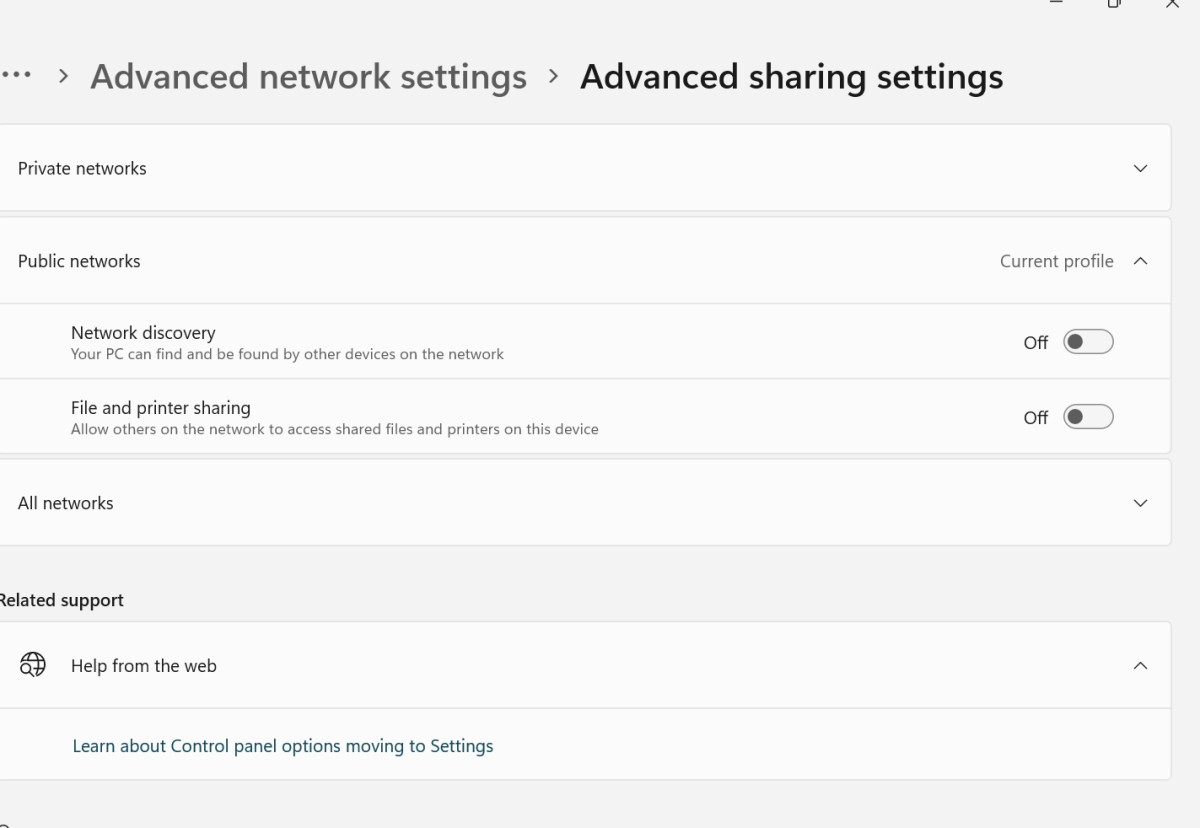
Disable Windows Network discovery
This feature of Windows allows my PC to discover and connect to other devices on the same network and vice versa. But it can also leave my PC vulnerable to malicious attacks if it’s activated when I’m connected to unsafe or unknown networks.
To switch it off in Windows Settings I go to: Network & Internet > Advanced Network Settings > Advanced Sharing Settings. Then I just switch the toggle to Off next to Network discovery in both public and private networks. With these settings toggled off, devices on the same network can’t connect to my PC.
Dominic Bayley / Foundry
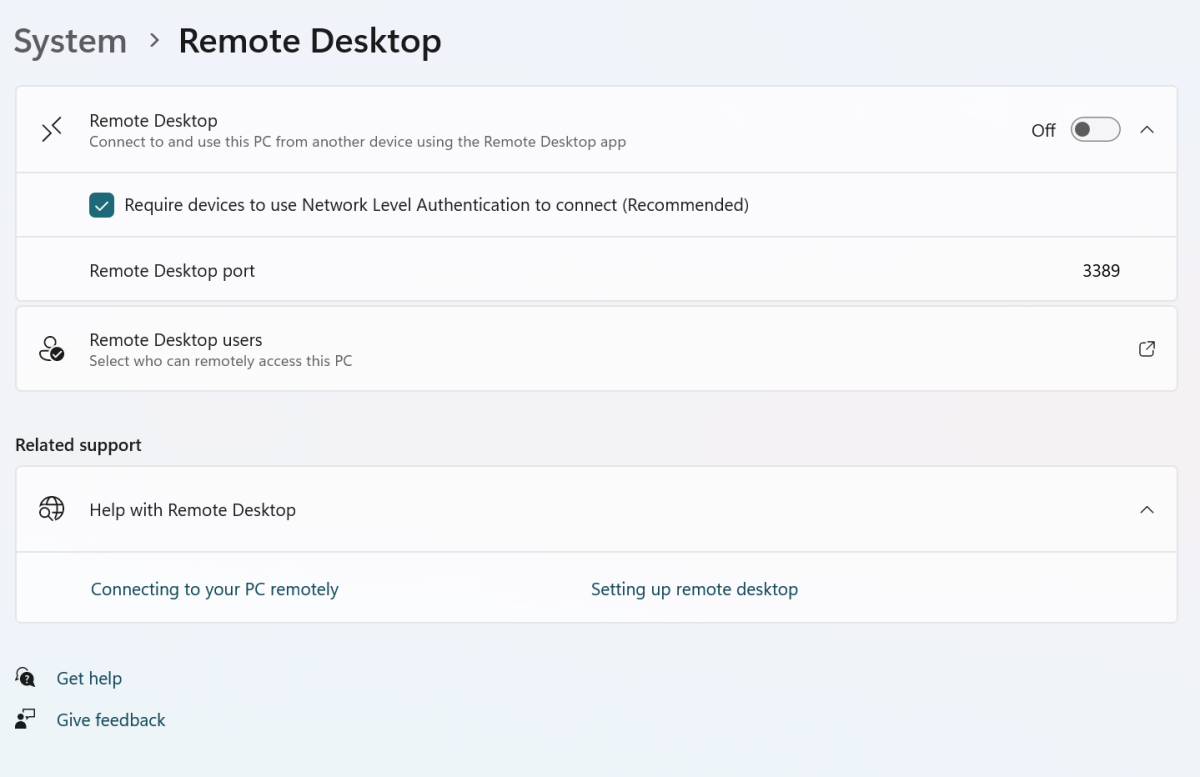
Turn off Remote Desktop
Remote Desktop is a cool feature of Windows that lets me access my PC from another device — so it’s ideal for when I’m working remotely or need to send and receive files from my PC and I can’t physically access it.
But this feature can also be an easy way for hackers to also access your desktop remotely, so I’ve changed the settings on my PC to stop that happening.
To do that, I opened Windows Settings and navigated to System. Then I clicked on Remote Desktop and toggled the setting Off. I then clicked Confirm to validate my choice.
Dominic Bayley / Foundry
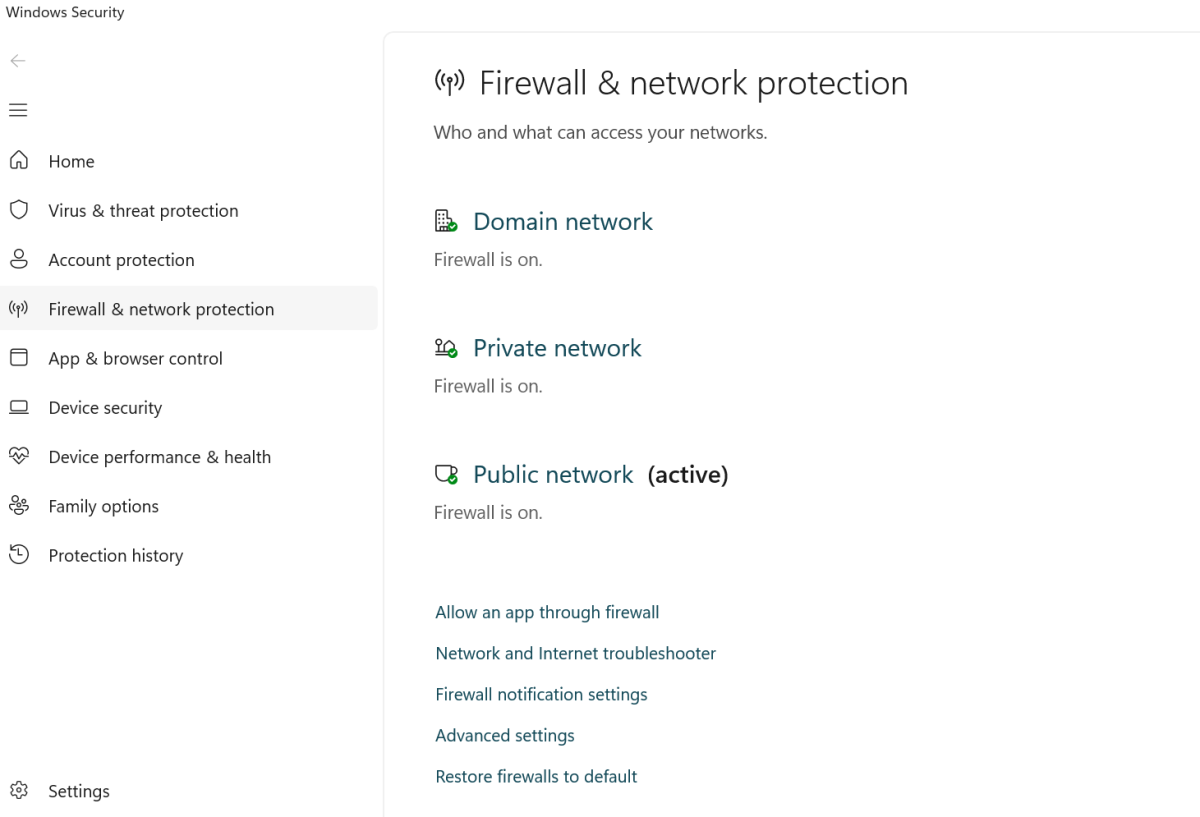
Activate Windows Firewall
I don’t use a separate firewall, so I always have Windows Firewall turned on as a second layer of defense after my antivirus app. To turn it on, in Windows 11 Settings select Privacy and Security > Windows Security > Firewall and network protection.
Now click on Domain network, Private network, and Public network sequentially and in each tab toggle Microsoft Defender Firewall to On.
Dominic Bayley / Foundry
Disable Windows Script Hosting
Windows Script Hosting is a feature that allows you to automate processes in Windows using scripts. Like other useful features of Windows, it can be exploited by malicious actors to run malware and then compromise your PC files or data.
I don’t use this feature, so I keep it disabled as a precaution against hackers running their own malicious scripts, which they’ve been known to do. To do the same, type reg into Search and then select Registry Editor in the menu to open it.
Now, navigate to HKEY_LOCAL_MACHINE > Software > Microsoft > Windows Script Host > Settings.
Once there, right-click in the box to create a new DWORD (32-bit) value and name it “Enabled.” Set the Value Data to 0. Once that’s done restart your PC and your WSH should be disabled.
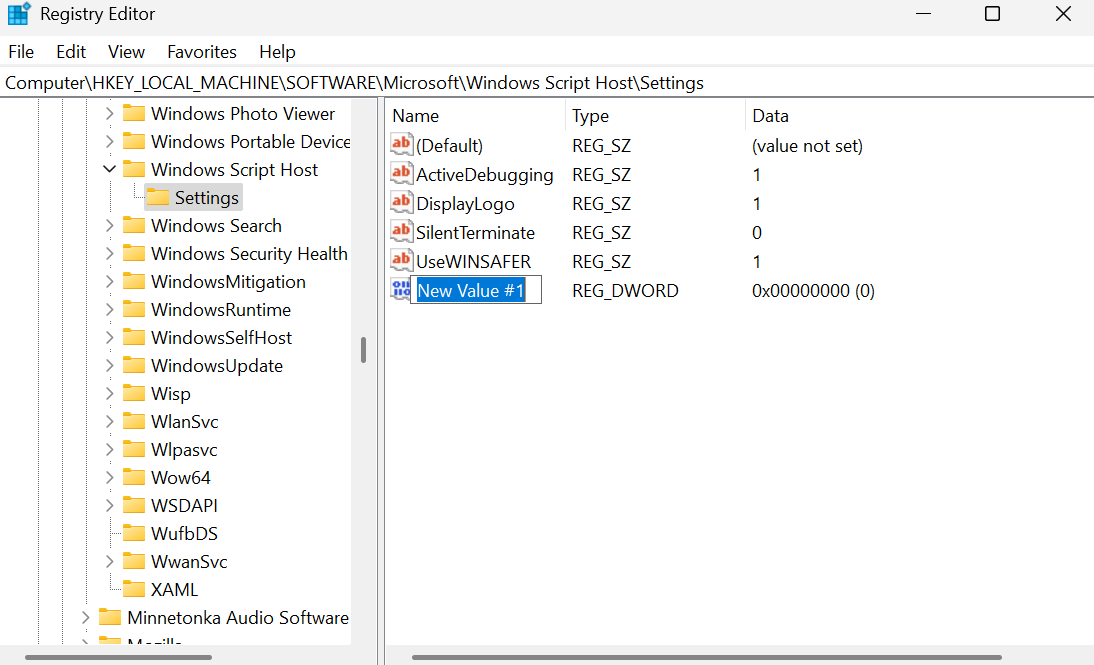
Dominic Bayley / Foundry
Stop your PC automatically connecting to a Wi-Fi network
After you’ve connected to a public Wi-Fi network, your PC saves the SSID and password you typed in in Managed Networks. If it’s set to connect automatically to Wi-Fi, it’ll then go ahead and connect to that same Wi-Fi network the next time you’re within range — that’s whether you want it to or not. It’ll even connect before you’ve had the chance to open your VPN and or antivirus programs.
That’s why I disable this feature. To follow my lead, in Settings click on Network & internet on the left. Then navigate to Wi-Fi > Manage known networks.
Browse the list of networks and select the one you want. Once selected, untoggle Connect automatically when in range to prevent your PC connecting automatically to that Wi-Fi network next time.
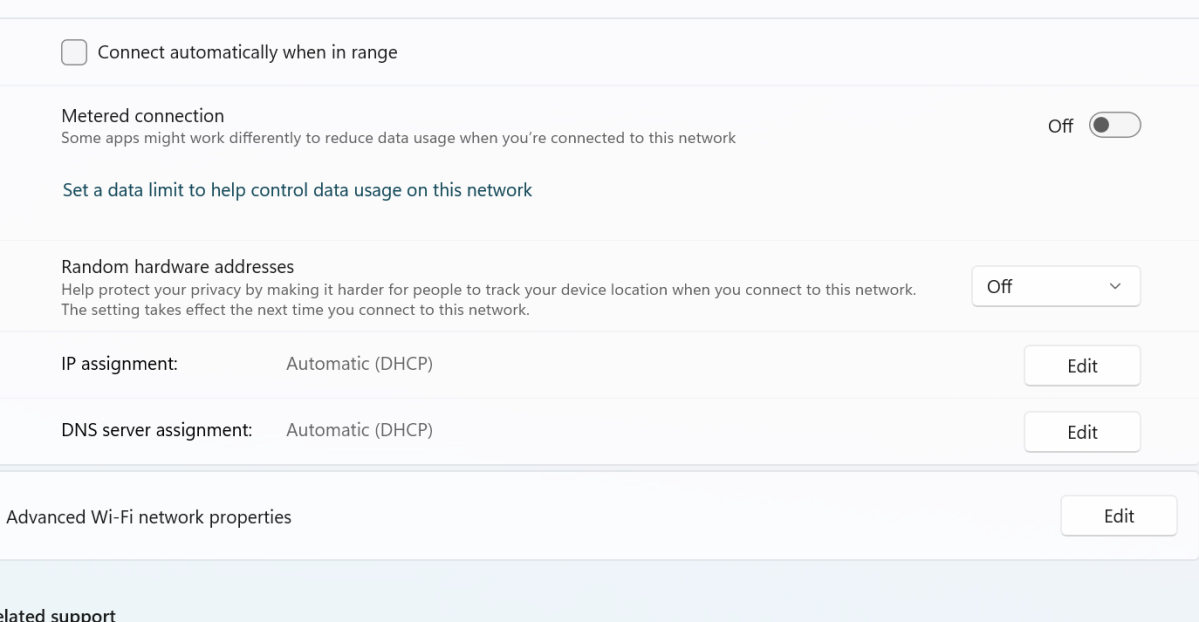
Dominic Bayley / Foundry
