
Close Menu
TechUpdateAlert

    Subscribe to Updates

    Get the latest creative news from FooBar about art, design and business.

    What's Hot

    My Health Anxiety Means I Won’t Use Apple’s or Samsung’s Smartwatches. Here’s Why

    December 22, 2025

    You can now buy the OnePlus 15 in the US and score free earbuds if you hurry

    December 22, 2025

    Today’s NYT Connections: Sports Edition Hints, Answers for Dec. 22 #455

    December 22, 2025
    Facebook X (Twitter) Instagram
    Trending
    • My Health Anxiety Means I Won’t Use Apple’s or Samsung’s Smartwatches. Here’s Why
    • You can now buy the OnePlus 15 in the US and score free earbuds if you hurry
    • Today’s NYT Connections: Sports Edition Hints, Answers for Dec. 22 #455
    • Android might finally stop making you tap twice for Wi-Fi
    • Today’s NYT Mini Crossword Answers for Dec. 22
    • Waymo’s robotaxis didn’t know what to do when a city’s traffic lights failed
    • Today’s NYT Wordle Hints, Answer and Help for Dec. 22 #1647
    • You Asked: OLED Sunlight, VHS on 4K TVs, and HDMI Control Issues
    Facebook X (Twitter) Instagram Pinterest Vimeo
    TechUpdateAlertTechUpdateAlert
    • Home
    • Gaming
    • Laptops
    • Mobile
    • Software
    • Reviews
    • AI & Tech
    • Gadgets
    • How-To
    TechUpdateAlert
    Home»Gaming»6 practical uses for the USB port on your router
    Gaming

    6 practical uses for the USB port on your router

    techupdateadminBy techupdateadminSeptember 18, 2025No Comments3 Mins Read
    Share Facebook Twitter Pinterest LinkedIn Tumblr Reddit Telegram Email
    Router
    Share
    Facebook Twitter LinkedIn Pinterest Email

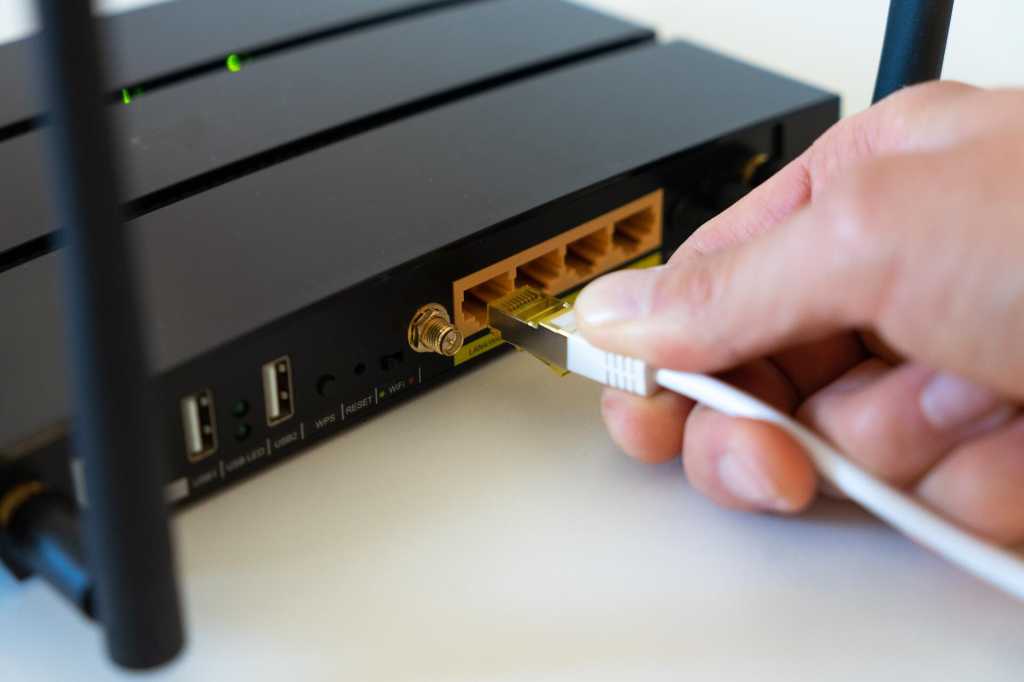
    The USB port on your router is often unused and yet it offers practical functions that can make everyday life easier. You can do things like saving and sharing files, mobile charging, or even an automatic backup of your data. We’ll tell you exactly how this works and what else you can do with your router’s USB port below.

    Further reading: Best USB-C cables 2025: Get quality charging and data transfers

    What can the USB port on the router do?

    The USB port on the router offers various functions depending on your model. Here are some of the most useful applications:

    • Printer sharing: Connect a USB printer to the router to make it available as a network printer for all devices on the network. This saves you having to change cables or drivers back and forth.
    • Network-attached storage (NAS): Connect an external hard drive or USB stick to store files centrally. You can make documents, photos or videos accessible to all devices in the home network and, with some models, even stream content such as films and music directly.
    • Backups: Many routers support automatic backups. Files from the network are automatically backed up to a connected USB storage device, either time controlled or in real time as soon as new files are created. You can find instructions for this further down in this article.
    • Power supply for IoT devices: Some USB ports are suitable for powering small devices such as IoT hubs, smart LED lamps, or chargers. A practical solution if there is no free socket nearby.
    • Mobile internet: If your router supports LTE dongles, you can easily switch to a mobile data connection in the event of an internet outage. This is particularly useful if you need a stable connection and your landline connection fails.
    • Charge devices: Some router models allow you to charge smartphones, tablets, or other devices via the USB port.

    Fritzbox with connected hard drive as router NAS

    AVM

    Which devices can you connect?

    The type of supported devices also depends on the router model. Check the operating instructions to see which devices your router supports and which connections are compatible.

    How to use the USB port for automatic backups:

    1. Connect a USB hard drive or stick to the router. In most cases, the storage device will be recognized automatically.
    2. Log in via the router’s user interface and search for options such as “Backup” or “Storage.”
    3. Select the option “New Backup Job” or a similar function and follow the instructions of the wizard.
    4. Decide whether you want a scheduled backup or a real-time backup that saves changes immediately.
    5. Perform the first backup manually to ensure that everything is set up correctly.

    Further reading: Solve your Wi-Fi problems with these smart router settings

    This article originally appeared on our sister publication PC-WELT and was translated and localized from German.

    port Practical Router USB
    Share. Facebook Twitter Pinterest LinkedIn Tumblr Email
    Previous ArticleDone With Facebook? Pull the Plug on Your Account (and Keep All Your Stuff)
    Next Article Today’s NYT Mini Crossword Answers for Sept. 18
    techupdateadmin
    • Website

    Related Posts

    Gadgets

    33 practical smart home gifts that make everyday life a little easier

    December 13, 2025
    Gaming

    I’ve just discovered that you can master time and space in Arc Raiders, and now I want to intimidate everyone with my physics-breaking aura

    December 5, 2025
    Gaming

    Logitech just gave your wallet some good news

    December 5, 2025
    Add A Comment
    Leave A Reply Cancel Reply

    Top Posts

    NYT Strands hints and answers for Monday, August 11 (game #526)

    August 11, 202545 Views

    These 2 Cities Are Pushing Back on Data Centers. Here’s What They’re Worried About

    September 13, 202542 Views

    Today’s NYT Connections: Sports Edition Hints, Answers for Sept. 4 #346

    September 4, 202540 Views
    Stay In Touch
    • Facebook
    • YouTube
    • TikTok
    • WhatsApp
    • Twitter
    • Instagram
    Latest Reviews

    Subscribe to Updates

    Get the latest tech news from FooBar about tech, design and biz.

    Most Popular

    Best Fitbit fitness trackers and watches in 2025

    July 9, 20250 Views

    There are still 200+ Prime Day 2025 deals you can get

    July 9, 20250 Views

    The best earbuds we’ve tested for 2025

    July 9, 20250 Views
    Our Picks

    My Health Anxiety Means I Won’t Use Apple’s or Samsung’s Smartwatches. Here’s Why

    December 22, 2025

    You can now buy the OnePlus 15 in the US and score free earbuds if you hurry

    December 22, 2025

    Today’s NYT Connections: Sports Edition Hints, Answers for Dec. 22 #455

    December 22, 2025

    Subscribe to Updates

    Get the latest creative news from FooBar about art, design and business.

    Facebook X (Twitter) Instagram Pinterest
    • About Us
    • Contact us
    • Privacy Policy
    • Disclaimer
    • Terms and Conditions
    © 2026 techupdatealert. Designed by Pro.

    Type above and press Enter to search. Press Esc to cancel.